
Auto annotation: AI proposes the boxes, you review and approve them
Robopipe Vision in the Studio app finds objects in an image from your label descriptions and draws boxes around them. You review and approve them.
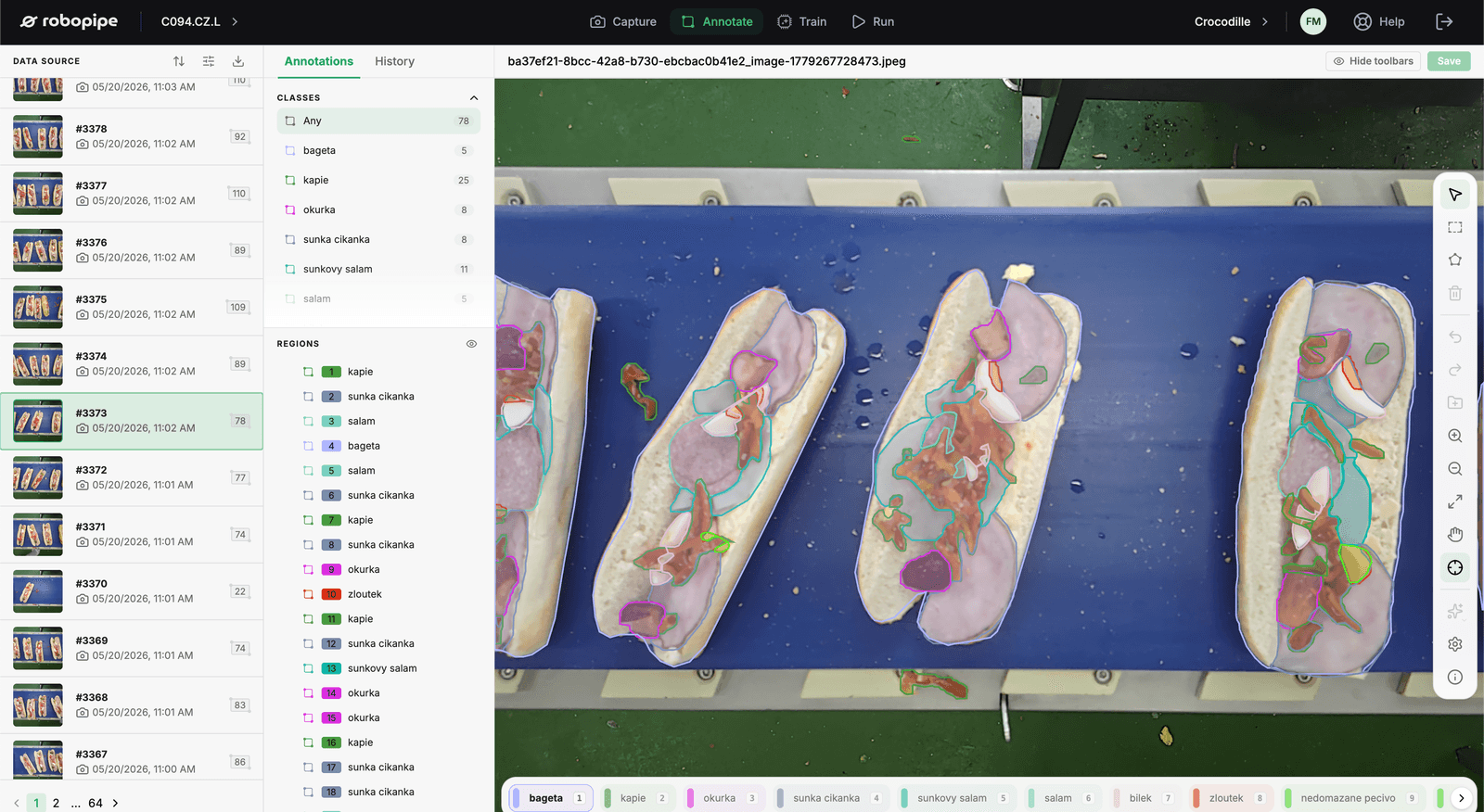
Why labelling slows you down
Before a model can recognise defects, it needs labelled images. For detection, that means drawing a box around every object in every image. It is the most laborious part of preparing a model.
Auto annotation in the Robopipe Studio app turns this around. Robopipe Vision proposes the boxes, and a person only reviews, corrects and approves them.
How auto annotation works
- Describe your labels. In the Auto-annotate settings, write one or two sentences per label about how to recognise it. Labels without a description are skipped. Robopipe Vision can also write the description for you from an example you have already labelled.
- Start the run. The "Auto-annotate with Robopipe Vision" button in the toolbar annotates the current image. In the data source list you can select several images and run them at once. The images run in parallel, and images that are already annotated are skipped.
- Boxes appear live. Robopipe Vision sends the boxes one by one as it finds them. Busy scenes can take a few minutes. The result is kept even if you leave the page.
- Review and approve. The proposals wait for review. You edit or delete individual boxes. Approve saves them as the annotations of the image.
Feedback and project notes
When a proposal is off, tell Robopipe Vision what went wrong. It runs again and returns a corrected set of boxes.
If the feedback is a rule for the whole project, Robopipe Vision saves it as a project note. You can exclude the note. Saved notes are used in every later run.
Good to know
- Auto annotation draws boxes today (object detection).
- A person always reviews, edits and approves the proposed boxes. No proposal is saved without your approval.
- You can use an offline model for auto annotation. Alternatively, Robopipe can deploy the whole solution at your site (on-premise).
- Auto annotation is part of the Pro and Enterprise plans. The open-source edition and the Standard plan do not include it.
Where annotation fits
Labelled images are the basis of AI quality inspection. The sooner you have them, the sooner camera quality inspection can start on your line.
From a label description to approved boxes
A person reviews every proposal. Nothing is saved without your approval.
Describe your labels
Write how to recognise each label. Robopipe Vision can suggest the description too.
Start the run
One image from the toolbar, or several selected images at once from the data source list.
Review and approve
Edit or delete boxes, then save them with Approve.
Auto annotation FAQ
What does auto annotation do?
It proposes boxes around objects from your label descriptions (object detection). Segmentation is coming soon.
Which plans include auto annotation?
Auto annotation is part of the Pro and Enterprise plans. The open-source edition and the Standard plan do not include it.
Are the proposals saved automatically?
No. A person always reviews the proposed boxes. You edit or delete boxes and save them only with Approve.
Do we have to describe every label?
At least one label needs a description. Auto annotation skips labels without one. Robopipe Vision can also suggest a description from an example you have already labelled.
Can we annotate several images at once?
Yes. Select images in the data source list and run auto annotation for all of them. They run in parallel, and images that are already annotated are skipped.
Can we run auto annotation offline or at our own site?
Yes. You can use an offline model for auto annotation. Alternatively, Robopipe can deploy the whole solution at your site (on-premise).
Want to see auto annotation on your own images?
Book a 30-minute demo and we will show you how Robopipe Vision labels your data.